
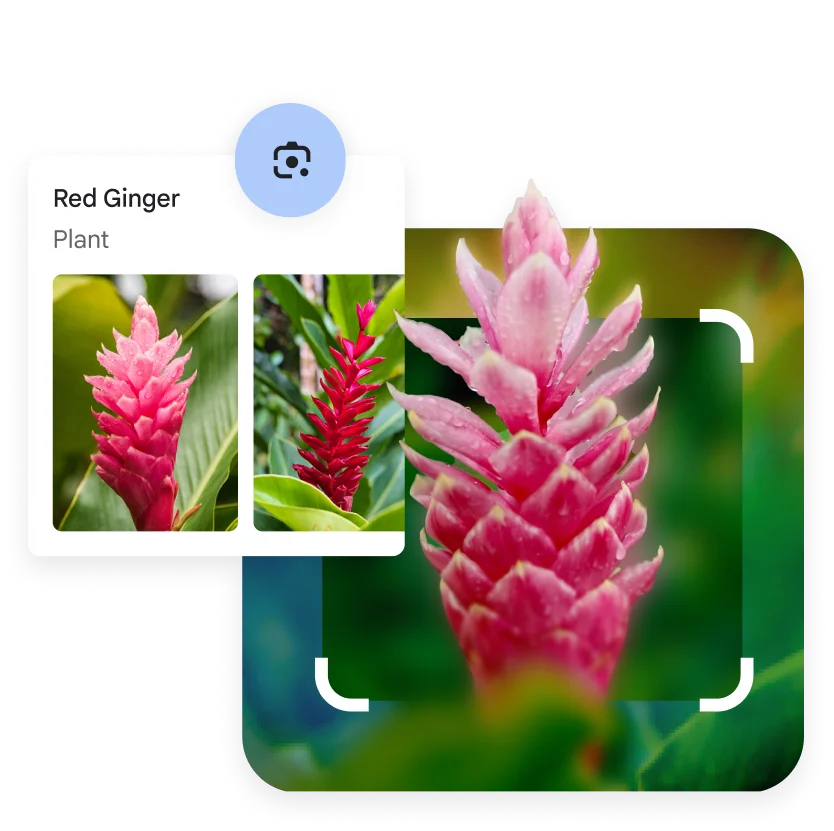
Finding the right information shouldn’t be limited to what you can type. Sometimes, it’s easier to search what you see – whether you’re trying to identify something in an image, translate words from a language you don’t know, or find the source of a photo you found online.
Understanding the best image search techniques can save you a lot of time. One of the most convenient image search techniques is Google Lens in Chrome – and it’s built right into your browser to make visual discovery more seamless than ever.
What is an image search?
An image search – sometimes called a reverse image search or pic to pic search – is a way to find information using visual content like pictures, videos, or your camera. Instead of typing in a search bar, you can select or upload an image to learn more about what you’re looking at.
By performing a Google search by image, you can easily identify objects, find the original source of an image, or get more context about a specific picture, making it a powerful way to explore the web visually.
How can I do an image search in Chrome?
To do an image search in Chrome, use Google Lens. It lets you search anything you encounter in Chrome – or images you take with your camera – across desktop, Android, and iPhone.
Image search techniques with Google Lens in Chrome
There are so many image search techniques you can use with Google Lens in Chrome:
- Search by image: Search an image you find on the web by selecting it
- Search by uploading image: Search by uploading an image to Google right from Chrome
- Search with camera: Open Chrome on your phone and click the Google Lens icon in the search bar to start a Google search with camera
Things you can do with Google Lens in Chrome
From translating to shopping and more, Google Lens is a versatile tool that makes it easy to search what you see.
Translate
Google Translate and Lens work together to translate image text in more than 100 languages. Search an image or use your camera to translate menus, signs, handwriting and more.
Copy text from an image
You can use Google Lens to copy text from an image and paste it to your phone or computer. Use it to copy paragraphs, serial numbers, and more without typing it all out.
Find clothes from a picture
Spot something you like? Use your camera or select an image to get more information about the clothes that caught your eye – where to buy it, how much it costs, etc. You can even add text to your search to find different patterns, colors, or sizes.
Identify objects, products, and more
Google Lens in Chrome makes it incredibly simple to identify objects, landmarks, plants, or products you find online or in the world around you.
How to use Google Lens in Chrome
How to activate Google Lens
If you’re already using Chrome as your default browser, there’s nothing you need to do to activate or enable Google Lens. It comes built into Chrome.
How to use Google Lens in Chrome on desktop
Google Lens is built right into Chrome on desktop. There are a few different ways to use it on a computer:
- From the Chrome menu: In your Chrome browser at the top right, select More and then Search this tab with Google Lens.
- By right-clicking a page: Right-click on a page and select Search this tab with Google Lens.
- By right-clicking an image: Right-click on an image and select Search this image with Google Lens.
For more information about using Google Lens in Chrome on desktop, see Google Chrome Help.
How to use Google Lens in Chrome on Android
Google Lens is built right into Chrome on Android. Here’s how to search a photo on Google Chrome on Android:
- To search with your camera: In Chrome, tap Google Lens within the search bar. Then, tap Search with your camera and then Shutter .
- To search an image you see while browsing: In Chrome, touch and hold the image you want to search. In the menu that opens, tap Search image with Google Lens.
Select Android devices also have Circle to Search – which is another way to search images. You can use it to search things in Chrome or any other apps on your phone. To learn how to use Circle to Search, see Android Help.
How to use Google Lens in Chrome on iPhone
Google Lens is available in the Chrome app for iPhone/iPad.
Here’s how to search a photo on Google Chrome on iPhone:
- To search with your camera: In the search bar, tap Google Lens and then Shutter .
- To search an image you see in Chrome: In your Chrome browser at the top right, select More and then Search screen with Google Lens.
For more information about using Google Lens in Chrome on iPhone/iPad, see Google Chrome Help.