
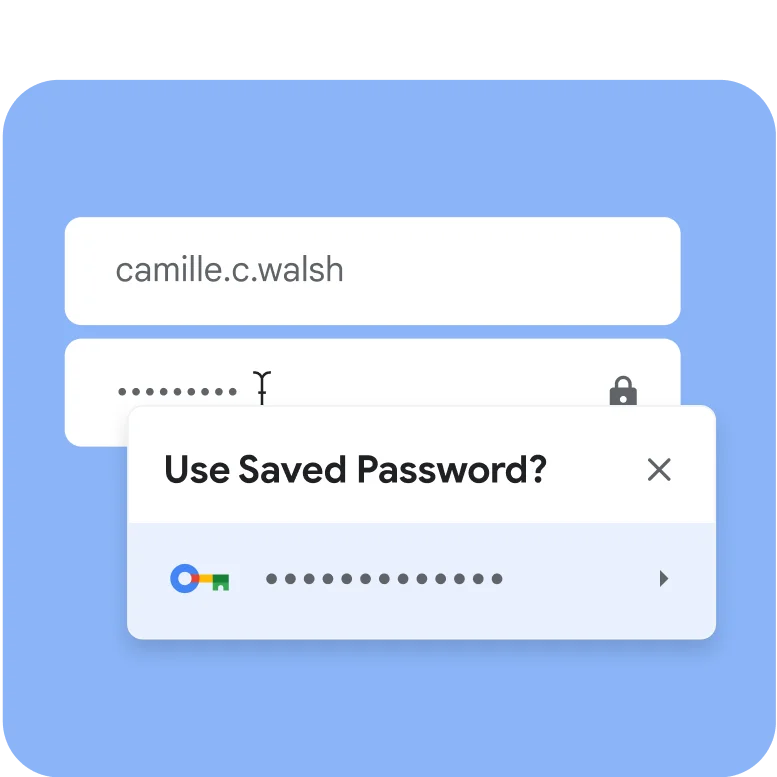
Google Password Manager is Chrome and Android’s free, built-in password manager. It saves, autofills, and protects your passwords across every device where you use Chrome or Android – no download or subscription required.
What is a password manager?
A password manager – sometimes called a password keeper or password vault – is a digital tool that stores your passwords securely.
How do password managers work?
Password managers work by encrypting your passwords – scrambling them into unreadable code. This way, anyone who tries to hack your account can’t get your actual passwords.
You can think of it like storing your passwords in a safety deposit box; even if someone breaks into the bank vault, they can’t get into your box without your personal key.
What is the purpose of a password manager?
Should you use a password manager? For most people, it’s impossible to remember strong, unique passwords for every account they have on the web. That’s where password managers come in:
- Create passwords: Some password managers can create strong and unique passwords for you – a much safer option than reusing passwords or typing common words or phrases.
- Store passwords securely: Password managers encrypt your passwords so they can’t be stolen. This means that they scramble your data to make it unusable if someone were to steal it – making it so much more secure than writing passwords down.
What is Google Password Manager?
Google Password Manager is Google’s version of a password manager and one of the best free password managers available. It makes signing in faster, helps you fix security issues, and works across all the devices where you’re signed in to your Google account.
Here are a few reasons to choose Google Password Manager:
- Built right into Chrome on all platforms – no setup, download, or purchase required.
- Accessible across devices wherever you’re signed in to your Google Account. The passwords you save in your computer browser work on your phone apps too.
- Conveniently autofills username and password fields whenever you encounter a sign-in field.
- Keeps passwords safe with Chrome’s built-in security. Your passwords are protected and encrypted, and our privacy tools put you in control of how your data is used.
- Suggests strong passwords to make creating unique passwords a breeze for added security.
How to use Google Password Manager in Chrome
Google Password Manager in Chrome is seamless and intuitive, letting you securely save, manage, and autofill your passwords across all your devices without any extra effort.
How to save passwords
It’s extremely easy to save passwords in Chrome. Anytime you enter a new password on a site, Chrome will ask to save it. Just select Save to store it in Google Password Manager.
Want to manually add a new password? Open Google Password Manager in Chrome and select Add to get started.
For more information, see Google Chrome Help.
How to view saved passwords
To see the passwords you’ve saved, open Google Password Manager in Chrome. Then, choose the password you want to see and select Show password. For more information, see Google Chrome Help.
How to use passwords and autofill
Google Password Manager automatically fills in username and password fields whenever they’re available. Just use your saved password and sign in!
How to import passwords into Chrome
If your passwords are already saved in Google Password Manager, there’s nothing extra you need to do to import them to Chrome. Just make sure you’re signed in to Chrome with the same account to use and manage your passwords on the web.
Coming from another browser or password manager? Follow these three steps to bring your saved passwords over to Chrome:
- Create a .csv file with your password data: See Google Chrome Help for advice specific to each browser. You can import up to 3,000 passwords per file.
- Import the file to Chrome: First, open Chrome and then click the three dots in the top-right corner to open the menu. Click Passwords and autofill and then Google Password Manager and then Settings. Under "Import passwords," click Select file and choose the .csv file you want to import. Then, follow the on-screen instructions.
- Delete the .csv from your device: This is a critical step for keeping your data secure.
For more help and information, see Google Chrome Help.
Is Google Password Manager safe?
Yes, Google Password Manager is safe to use. In fact, it’s the most-used password manager service in the United States, according to a Security.org research poll.
Google Password Manager protects your passwords with advanced security and encryption. Plus, you can make it even more secure by enabling on-device encryption, which encrypts your usernames and passwords with a secret key known only to your device. This means that nobody – including Google – learns your username or password. To learn how to set up on-device encryption, see Google Account Help.
How to create a strong password
To create a strong password, we recommend using passwords automatically generated by Google Password Manager. It can suggest strong passwords and act as a password generator when you’re signed in to Chrome. No need to come up with password ideas on your own!
As you’re creating a new account, select the password text box and then select Use strong password. (If this option doesn’t show, right-click the password text box and select Generate password.) Your generated password automatically gets saved to your Google Account to be used across all your devices.
What is a passkey, and how do passkeys work?
Passkeys are a way to sign in with just your fingerprint, face scan, or screen lock instead of a password.
There are a couple things that make passkeys safer than passwords:
- They can’t be guessed or reused
- They can’t be used for phishing since they’re connected to the app or website they were created for
Just like passwords, passkeys can be saved in Google Password Manager and used wherever you’re signed in to Chrome.
How to create a passkey
When you go to a site that uses passkeys, it might ask if you want to create a passkey in Google Password Manager. Select Create to create a passkey for that site. For more details, see Google Chrome Help.
To create a passkey for your Chrome profile, click here.